Executing source scripts with Run source
During database migration, it may be necessary to compare how a script behaves in the source database versus how the converted code performs in the target database. For example, you might want to compare the return values of a procedure call, or—if the converted code has been manually modified—verify that it functions exactly like the original.
The “Run source” feature allows you to execute original SQL code directly from the File Editor against the source database and review the execution results in the Output panel.
This enables you to view, edit, and execute code, as well as analyze the results, all within a single workspace in SQLWays—streamlining the process of testing and comparing the execution of original and converted objects.
Note: Currently, the “Run source” feature is available when the source database is either Microsoft SQL Server or Oracle.
Availability of Run source
The “Run source” button is displayed in the File Editor after you open a converted file, click the “View source file” button, and set the focus to the Source.
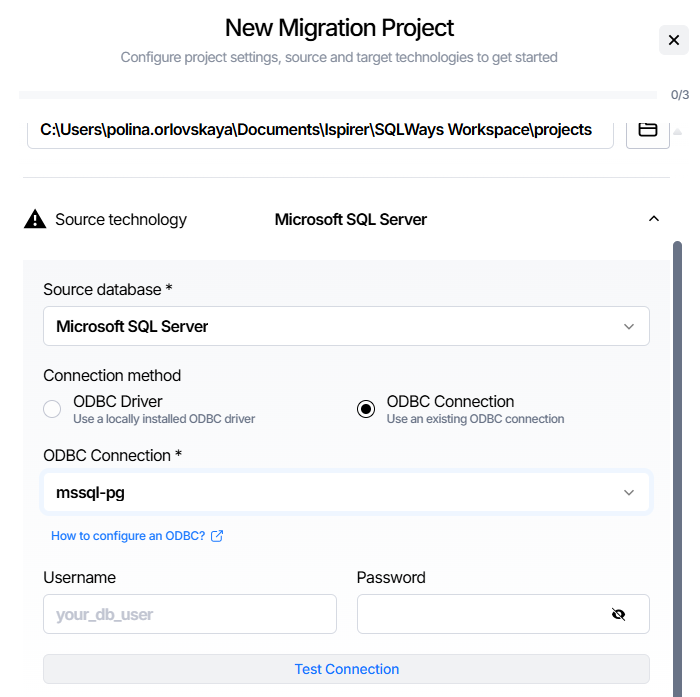
This command executes SQL against the source database using the connection configured in the Source technology section of the migration project.
Running a Source Script
To execute the source SQL code:
- Open the required converted object in the File Editor.
- Click the “View source file” button.
- Set the focus to the Source.
- Review or edit the resulting source code, if necessary.
- Click “Run source.”
If no text is selected in the editor, SQLWays executes the script available in the current source file. You can also use the keyboard shortcuts F5 to start execution in the editor that currently has focus.
SQL statements are executed sequentially, in the order in which they appear in the script. If a query returns more than 100 rows, only the first 100 rows will be displayed, accompanied by an appropriate notification.

Execution on the source database does not block execution on the target database. They run in parallel, and their results are displayed in separate tabs in the Output panel.

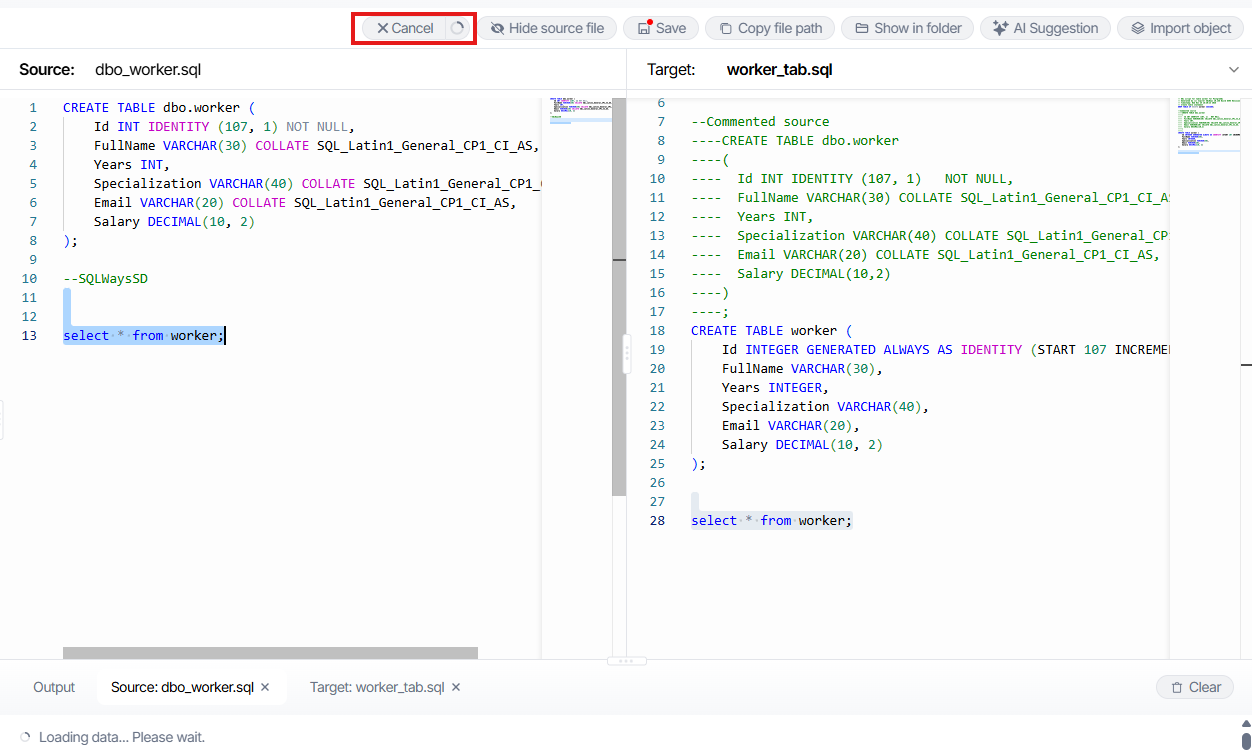
If you need to stop the script execution at any point, click the “Cancel” button—which replaces the “Run source” button while the script is running.
Executing Selected SQL Statements
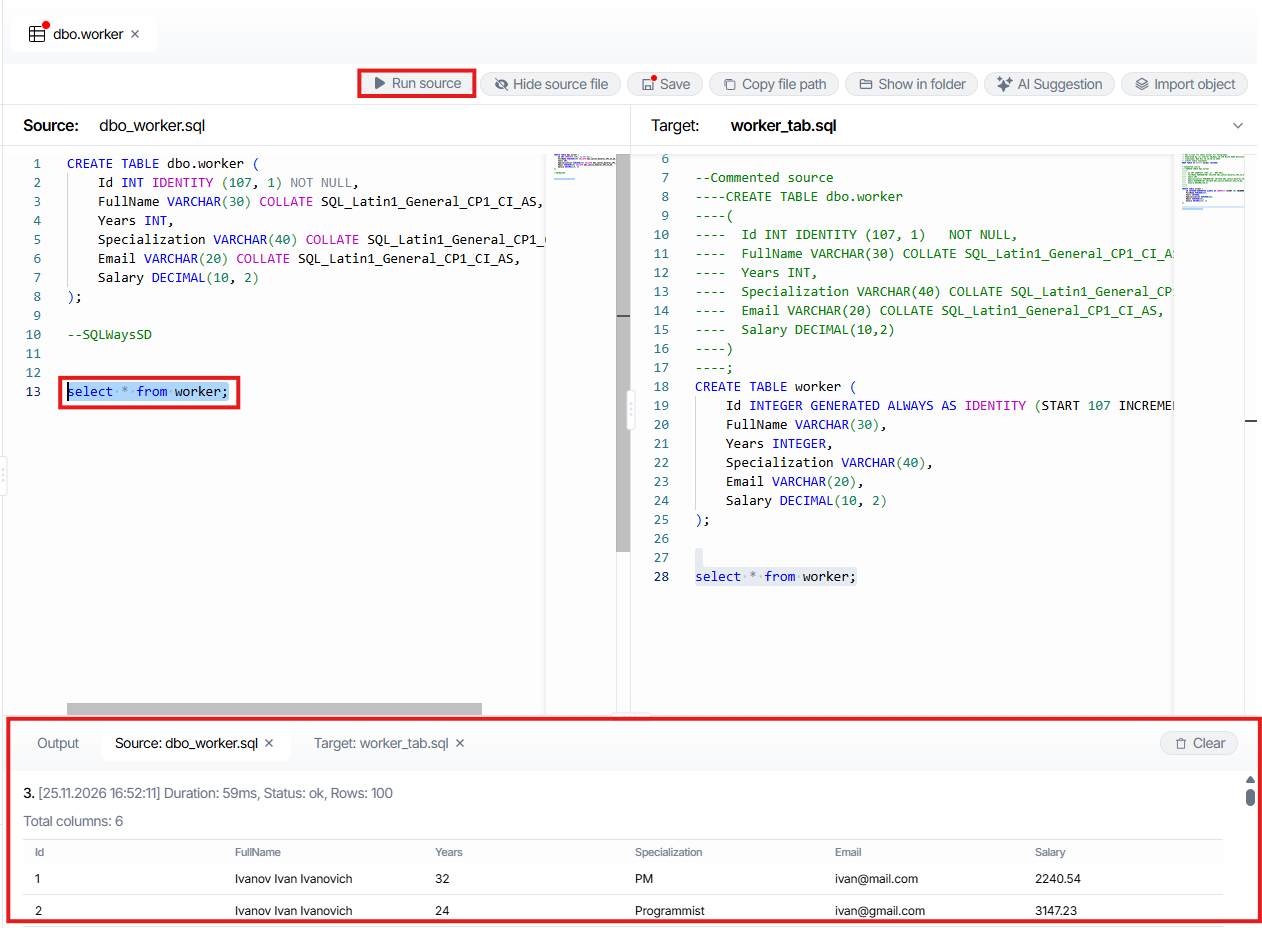
It is not necessary to execute the entire source file. If a part of the SQL code is selected in the editor, Run source executes only the selected fragment. This is useful when you need to test an individual statement without executing the remaining contents of the file.
For example, for a table created in Microsoft SQL Server, you can add and select the query such as:
SELECT * FROM worker;
and execute only this statement.
The makes “Run source” particularly convenient for:
- Unordered List Itemverifying that the source code functions correctly;
- obtaining a reference result for subsequent comparison with the target database;
- checking for the presence of source data;
- debugging locally and refining the logic of complex script segments;
- executing diagnostic queries.
Important: SQLWays does not request additional confirmation for potentially destructive statements. Commands such as DROP, DELETE, or TRUNCATE are executed if they are included in the executed script or selected fragment. The code should therefore be reviewed before running it against the target database.
Handling Execution Errors
If the database cannot execute the submitted SQL, the corresponding error is displayed in the Output panel.
The execution record includes the status, duration, the number of affected rows, and the error message returned during execution. For example:

This allows you to view the source code, execute it, verify its correctness, and compare its execution with that of the converted object—all without needing to switch to an external database client.
Typical Workflow
A common workflow with Run source is:
- Convert an object from Microsoft SQL Server or Oracle.
- Open its target file in the File Editor.
- Click the “View source file” button.
- Set the focus to the source.
- Review the SQL code.
- Modify the code if required.
- Select a particular statement or leave the script unselected to execute the complete file.
- Click “Run source”.
- Review the result or database error in the Output panel.
- Correct the SQL and repeat the execution if necessary.
“Run source” provides a quick way to validate source SQL code during migration and reduce the need to switch between SQLWays and external database tools when investigating conversion results.
Related Topics
If you have any questions or face any difficulties, please contact our support team at [email protected].