Ispirer Website
Ispirer Toolkit Overview
Free Trial
Filtering Migration Objects by Status in SQLWays
During a database migration, each object in the Project Objects Panel has separate statuses for the Conversion and Import stages. For projects containing a large number of database objects, reviewing the entire object tree manually may be inconvenient, especially when you need to quickly identify objects that failed, were successfully processed, or are still being processed.
SQLWays allows you to filter the migration object tree by the status of the Conversion and Import stages. This makes it easier to focus on the objects that currently require attention.
Available Status Filters
Status filtering is available separately for the following columns in the Project Objects Panel:
- Conversion
- Import
For each column, the following statuses can be selected:
Successful— displays objects for which the corresponding migration stage has completed successfully.Failed— displays objects for which the corresponding migration stage has completed with an error.Processing— displays objects that are currently being processed.
The Conversion and Import filters can be used independently. Both filters can also remain active while you review the migration results.
Opening a Status Filter
To filter objects by migration status:
- Open a migration project.
- Locate the Project Objects Panel on the left side of the project workspace.
- In the Conversion or Import column header, click the filter icon.
A filter pop-up will appear for the selected column.
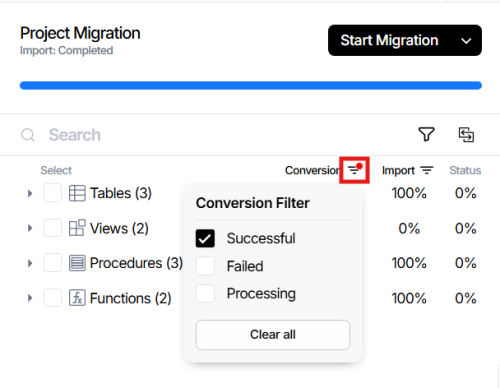
Filtering Failed Objects
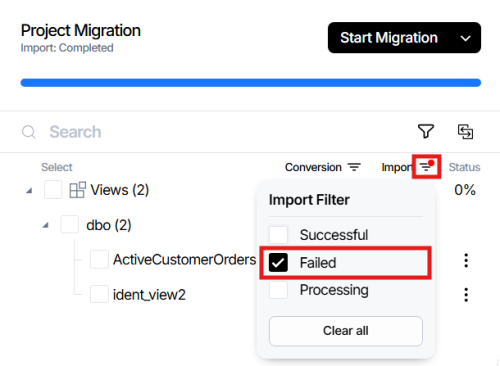
One common scenario is identifying objects that failed during conversion or import. For example, to display objects that failed during import:
- Click the filter icon in the Import column.
- Select Failed.
The filter is applied immediately. The Project Objects Panel is updated to display the objects that match the selected import status, while keeping the relevant object hierarchy available for navigation.
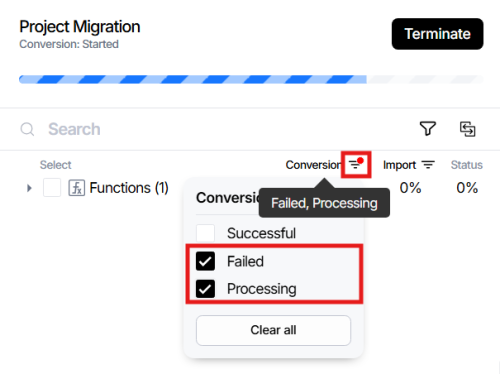
Selecting Multiple Statuses
You can select more than one status within the same filter. For example, if you select both Failed and Processing in the Import filter, SQLWays displays objects that match the selected statuses.
This can be useful while migration is still running: you can keep successfully processed objects out of the current view and focus only on objects that have encountered errors or have not yet finished processing.
Each checkbox is applied immediately when it is selected or cleared.
Filtering Conversion and Import Results
Conversion and Import are separate stages of the migration process and therefore have separate filters.
Use the Conversion Filter when you need to analyze the results of source object conversion.
For example, you can use it to:
- find objects whose conversion failed;
- display successfully converted objects;
- identify objects that are still being converted.
Use the Import Filter when you need to analyze the results of loading converted objects into the target database. For example, you can use it to:
- identify objects that could not be imported;
- review successfully imported objects;
- monitor objects whose import is still in progress.
This separation is useful when an object is converted successfully but encounters an error during import into the target database.
Filtering while migration is running
Status filtering can also be used while migration is in progress.
As object statuses change during conversion or import, SQLWays updates the migration object information while keeping the selected filter settings active.
For example, you can select Failed and Processing during an import operation to concentrate on objects that either require attention or are still being processed.
There is no need to configure the filter again whenever object statuses are updated during the current project session.
Clearing a Status Filter
To remove filtering for a particular column:
- Open the filter popup for the Conversion or Import column.
- Click Clear all.
All selected checkboxes in that popup are cleared, and filtering by that column is removed. The object tree is then displayed without the corresponding status restriction.
Typical Use Cases
Status filtering can significantly simplify result analysis in large migration projects.
For example, after migration, you can select: Import → Failed to display objects that require investigation or correction before they can be successfully loaded into the target database.
During an active migration, you can select: Import → Failed + Processing to focus on objects that have either encountered an issue or are still being processed.
Similarly, selecting Conversion → Failed allows you to quickly locate objects whose conversion should be reviewed before proceeding with further migration steps. These filters reduce the need to manually browse large object trees and help users focus on the objects relevant to the current migration task.
Related Topics
If you have any questions or face any difficulties, please contact our support team at support@ispirer.com.