Ispirer Website Ispirer Toolkit Overview Free Trial
SQLWays: Creating New Migration Project
Creating a new migration project is the first and mandatory step before starting any conversion or migration activities in SQLWays. A project defines the source and target technologies, connection parameters, and overall migration scope.
To create a new project, open the Projects page and click Create New Project. This action opens the New Migration Project wizard, which guides you through the configuration process step by step.
Project Name and Source Type
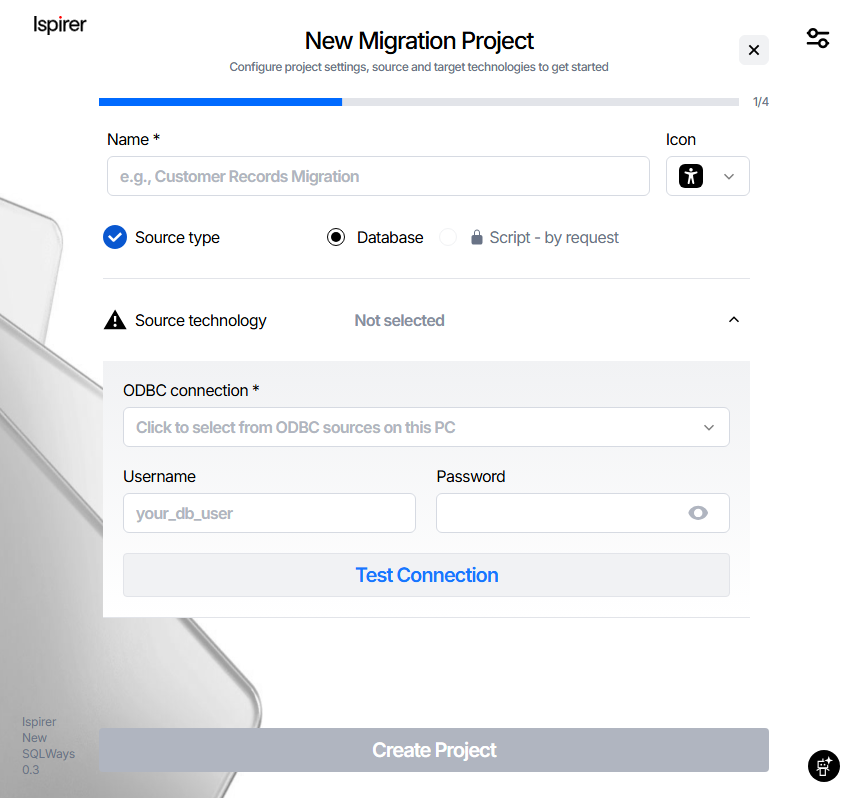
In the first step of the wizard, you must provide basic project information:
- Project Name — A mandatory field used to uniquely identify the migration project. The project name is also used to create the project directory.
- Project Icon — An optional visual identifier to help distinguish projects in the list.
- Source Type:
- Database – used for live database migrations via ODBC connection
- Script (by request) – reserved for script-based migrations
After selecting Database, proceed to configure the source technology.
Source Database and Connection
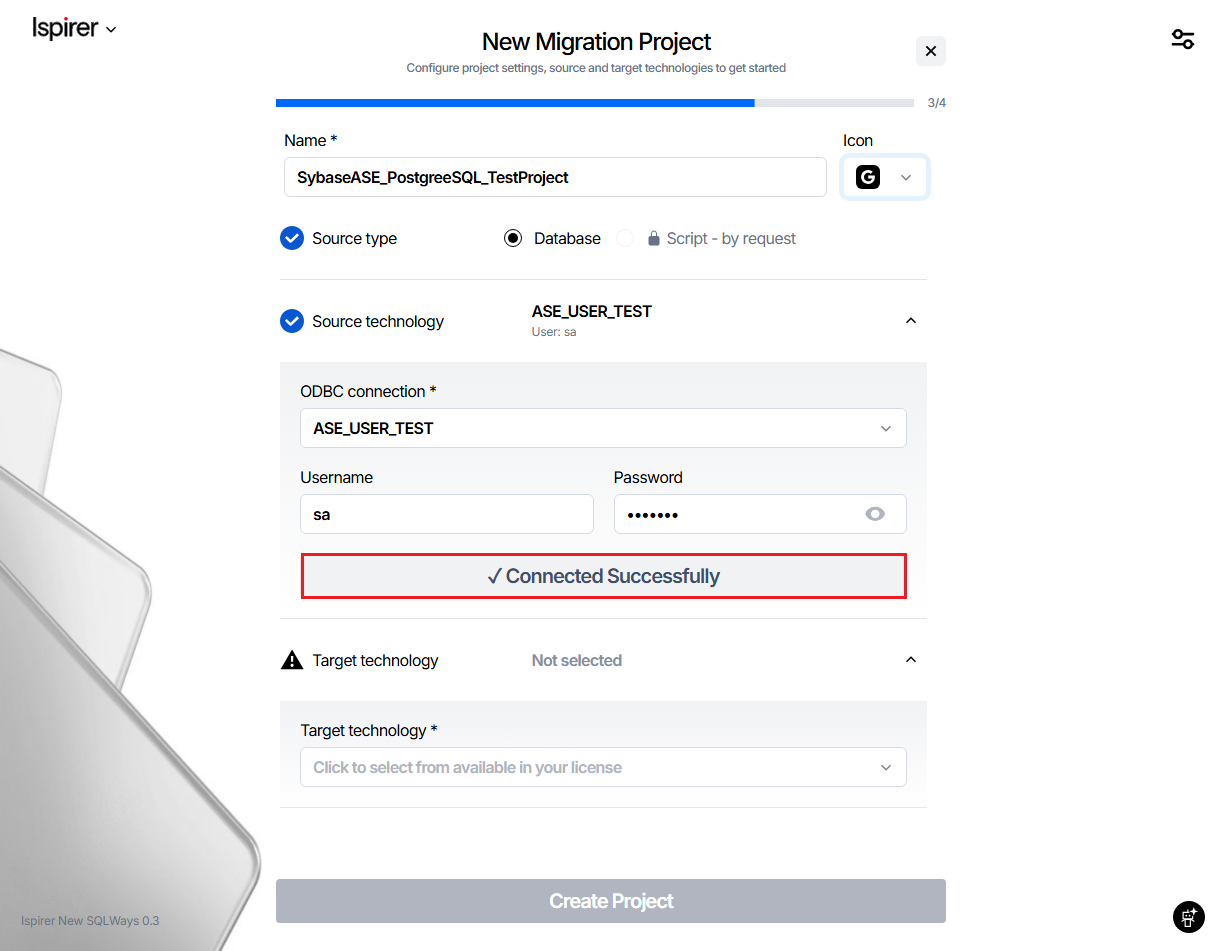
In this step, you configure the source database connection:
- Source Technology
Select the source database type supported by your license.
- ODBC Connection
Choose an existing ODBC data source configured on the local machine.
- Username / Password
Credentials used to connect to the source database.
Click Test Connection to validate the provided parameters. If the connection is successful, the status Connected Successfully is displayed, and the wizard allows you to continue.
Target Database Selection (Conversion Only)
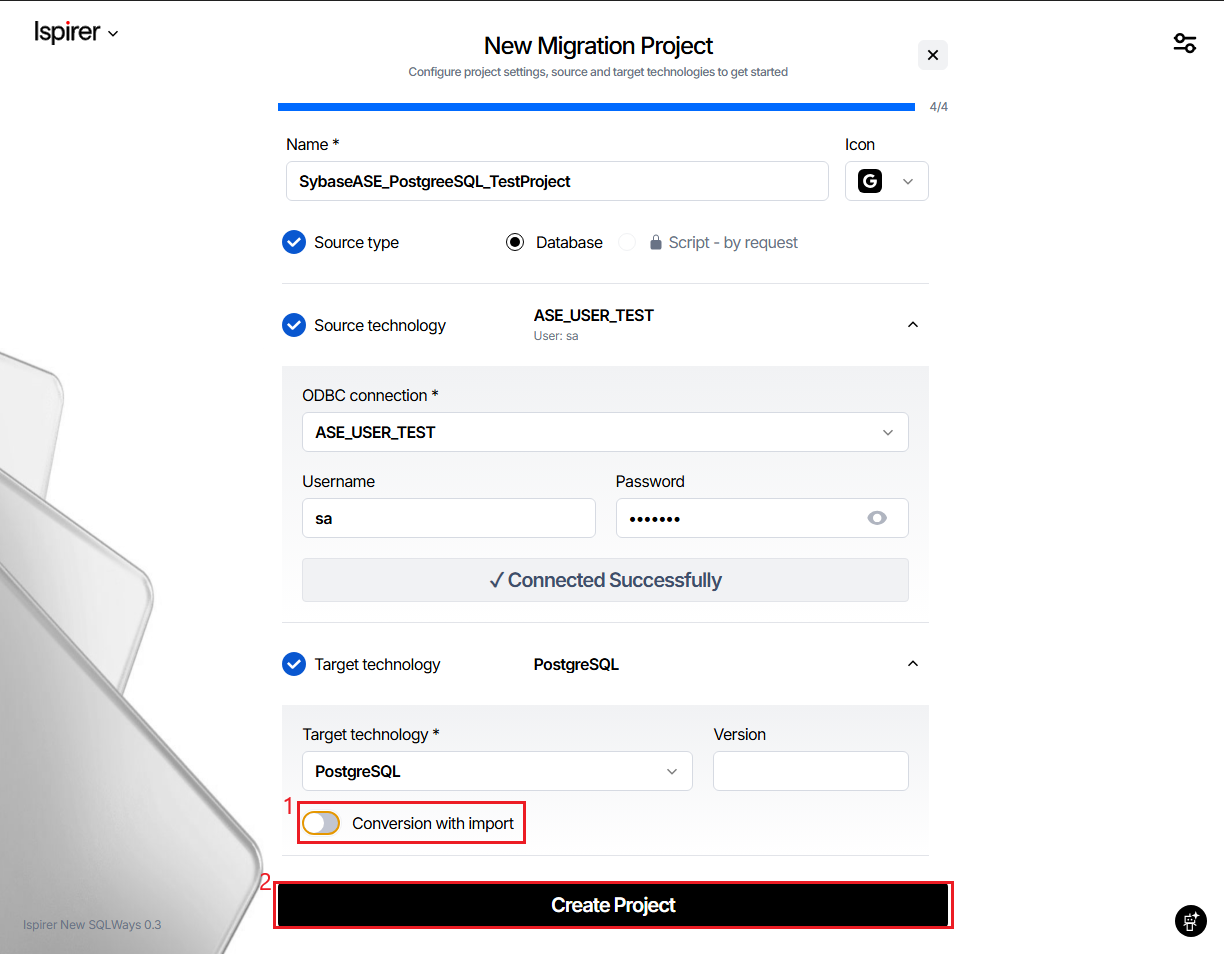
After a successful source connection, you can select the target technology.
If your project requires conversion only (DDL and/or code conversion without importing objects or data into the target database):
- Select the Target Technology
- Leave Conversion with import disabled
In this mode, the tool allows you to create a project without providing target database credentials. The project will generate conversion output files without attempting to connect to the target database.
This option is commonly used for:
- Offline code review
- Manual deployment workflows
- Pre-migration assessment and testing
Target Database and Import Configuration
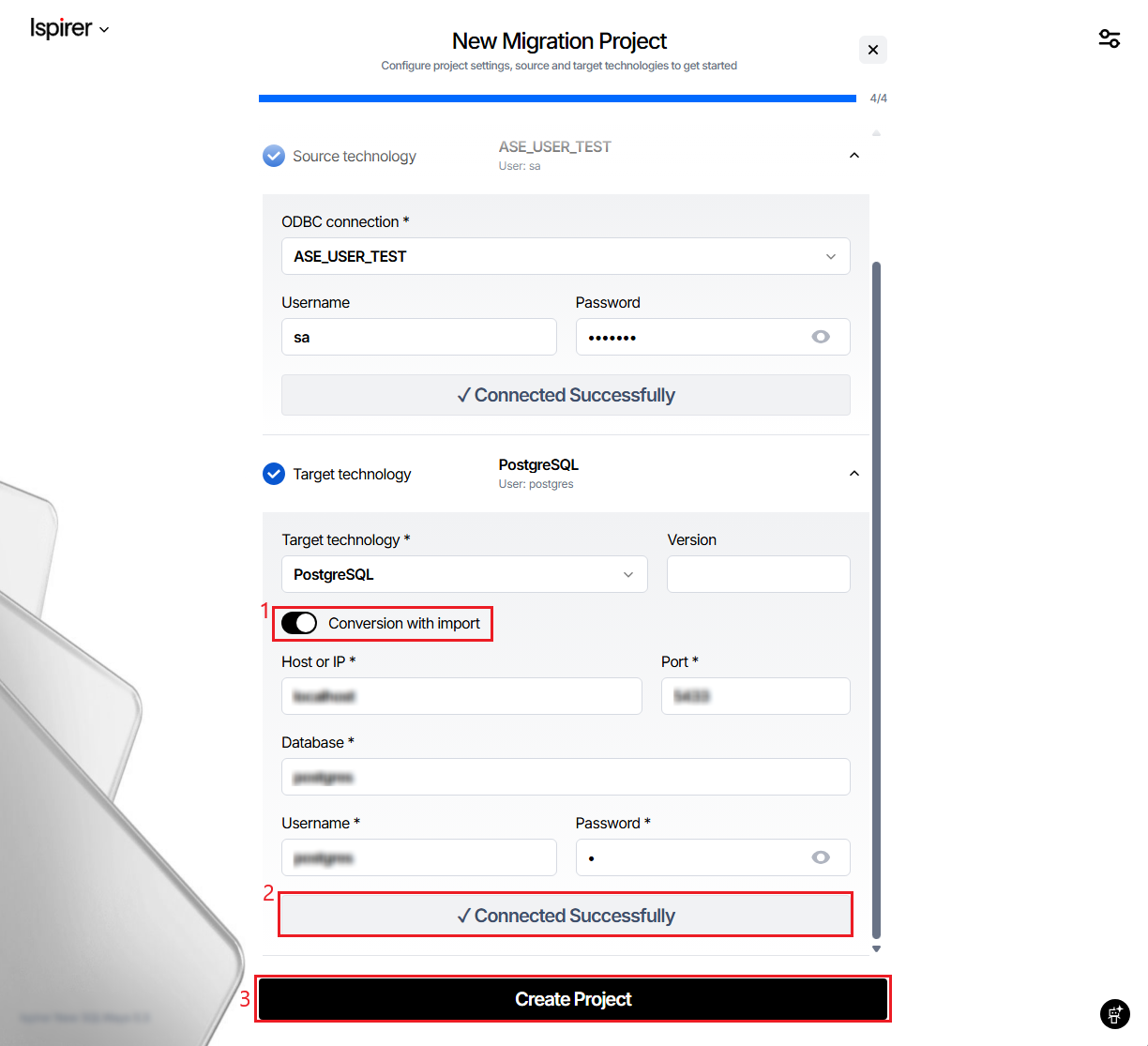
If your project includes conversion with import, additional target connection details are required:
- Target Technology
- Host / IP
- Port
- Database
- Username / Password
Enable Conversion with import to activate these fields.
After entering the required information, click Test Connection.
The tool verifies the target database connection and displays Connected Successfully if all parameters are valid.
Only after successful validation of required connections does the Create Project button become active.
Note:
If your target is not a PostgreSQL database, you will need to provide a path to a bin directory. This is the folder on your computer where the target database native utilities are stored, where Ispirer Toolkit is installed. This means that to perform the import into the target database, you need the native utility installed on the computer where you run the conversion.
- Oracle: For Oracle, you need to specify the path to the folder containing the
sqlldr.exetool. - Microsoft SQL Server: For Microsoft SQL Server, you need to specify the path to the folder containing the
bcp.exeand sqlcmd.exe native utilities. - MySQL: For MySQL database, you need to specify the path to the folder containing the
mysql.exenative utility.
The Create New Project wizard provides a structured and guided way to configure migration projects in SQLWays.
It supports both conversion-only and full migration scenarios, validates connections upfront, and ensures that all required parameters are defined before the project is created.
This approach helps prevent configuration errors and establishes a reliable foundation for the migration process.
Related Topics
If you have any questions or face any difficulties, please contact our support team at support@ispirer.com