Ispirer Website
Ispirer Toolkit Overview
Free Trial
Migration Control: Conversion and Import of Objects
All migration operations are performed through the Start Migration button.
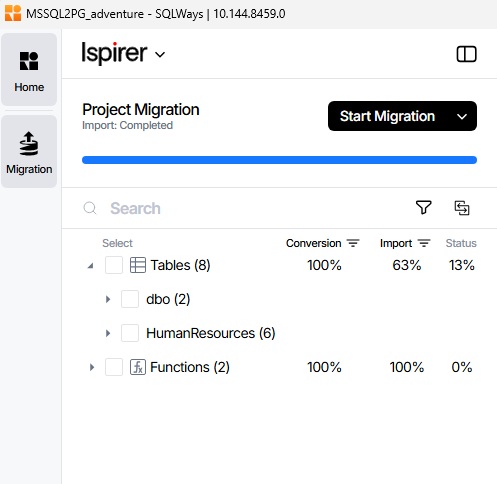
Start Migration
If no objects are selected, the button is labeled Start Migration. Its dropdown menu provides the following options:
- Start Conversion - performs a full conversion of all objects.
- Start Import - imports objects into the target database.
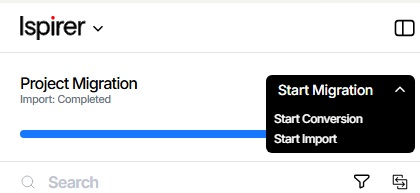
By default, no objects are selected in the object tree.
Migrate Selected
If one or more objects are selected, the button automatically changes to Migrate Selected.
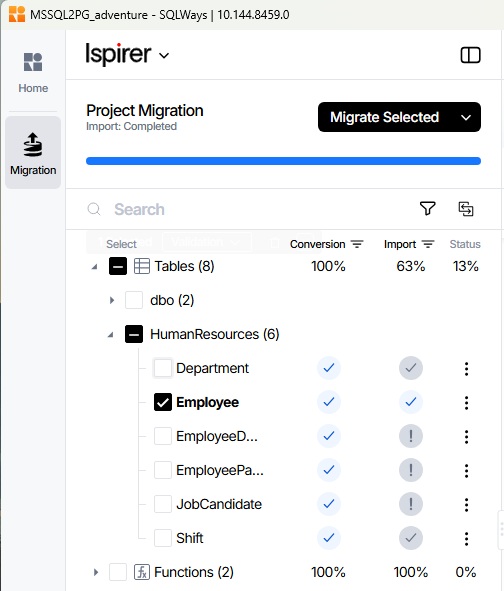
The dropdown menu provides the following options:
- Convert Selected
- Import Selected
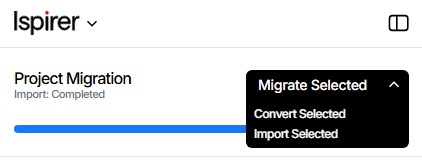
The “Convert Selected” action is available for any object from the object tree. Thus, it is possible to convert individual objects, regardless of whether they were converted earlier when performing a full conversion or were added later.
However, there is an important limitation for importing selected objects: the “Import Selected” action is available only for objects from the last conversion performed, and only those for which the conversion was completed successfully.
Progress and Logs
The progress of individual object conversion is displayed in the same way as individual object import progress: • in the object tree; • on the dashboard. Log files are also generated for individual object conversion.
Available Actions
The behavior of the button depends on the current object selection state:
| State | Button /(MAP_ERR_CODES=No) | Available Actions |
|---|---|---|
| No objects selected | Start Migration | Start Conversion Start Import |
| One or more objects selected | Migrate Selected | Convert Selected Import Selected |
By default, no objects are selected in the object tree, so when a project is opened, the user sees the Start Migration button.
Thus, all main migration operations - full conversion, full import, and conversion or import of selected objects - are available through a single control. The availability of individual operations depends on the results of the previous full conversion and the current state of the objects.
Related Topics
If you have any questions or face any difficulties, please contact our support team at support@ispirer.com.