Table of Contents
Import settings for tables
Importing «DDL», «Data», «Constraints» and «Indexes»
On the «Migration Rules» page, you can enable or disable the import of «DDL», «Data», «Constraints» and «Indexes» for tables by selecting or clearing the corresponding checkboxes.
- «DDL» – an SQL script or statement that defines a table name, a list of columns, and the data types for each column. If this checkbox is selected, the specified empty table will be created in the target database—without any indexes, constraints, or data. If this checkbox is disable, the table will not be created in the target database.
- «Data» – all data stored in the source table, presented in text format. If this checkbox is selected, the data will be imported into an existing table in the target database. If the checkbox is disable, the data will not be imported into the target table.
- «Constraints» – all constraints defined on the columns of the source table, such as “primary key,” “foreign key,” “check,” etc. If this checkbox is selected, the constraints will be added to the existing table in the target database. If this checkbox is disable, no constraints will be created for the table in the target database.
- «Indexes» – indexes created on the source table. If this checkbox is selected, indexes are created on the existing table in the target database. If the checkbox is disable, no indexes will be created for the table in the target database.
These parameters apply to all tables or to selected objects. Although all elements (DDL, Data, Constraints and Indexes) are processed during the conversion, only those selected in the settings will be included in the import.
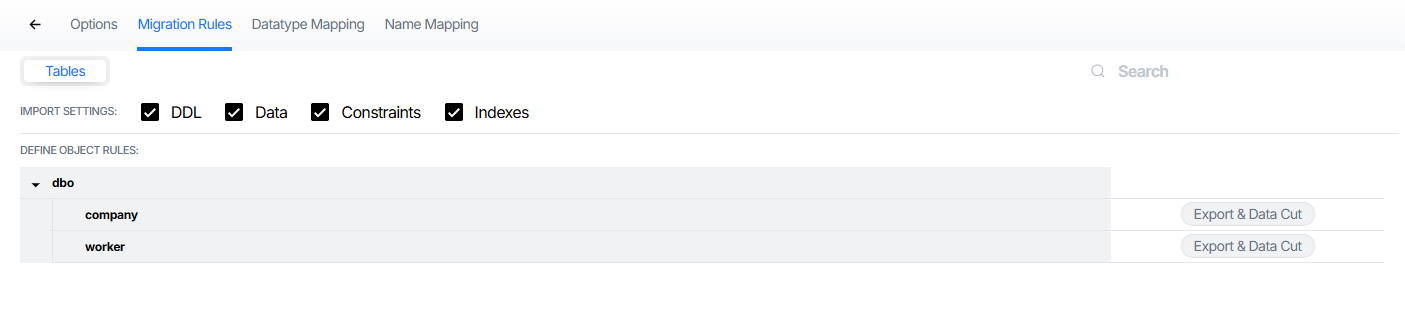
Export & Data Cut and search
You can configure conversion settings for individual tables. The “Export & Data Cut” option is provided for this purpose.
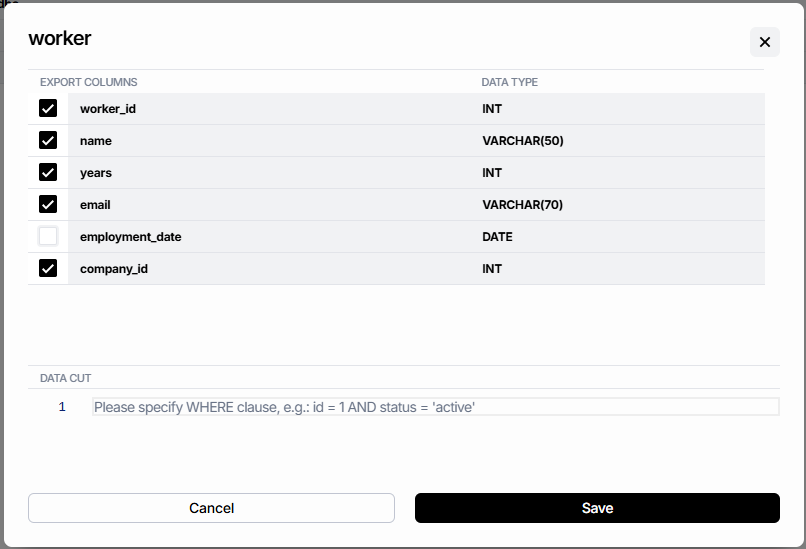
This option allows you to include or exclude specific table columns from the conversion process. To do this, simply check or uncheck the boxes in the form that lists the columns to be exported along with their data types.
- If this checkbox is selected, the column will be included in the table DDL upon conversion. When the converted table is imported, the column will be created in the target database.
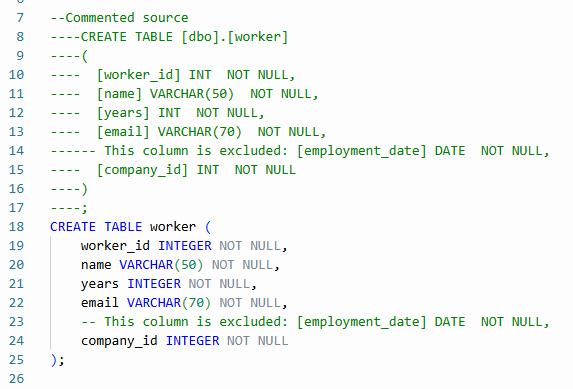
- If you disable the checkbox, this column will be marked as excluded (commented out) during the conversation and will not be created when the conversion table is imported.
After specifying the settings, click «Save» and perform the table conversion. In the resulting DDL for the table, any columns that were not selected via the checkboxes will be commented out.
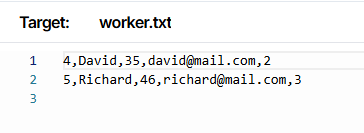
The «Export & Data Cut» option also provides the ability to filter table data. To do this, enter a filtering condition in the «Data Cut» field—for example WHERE years > 30
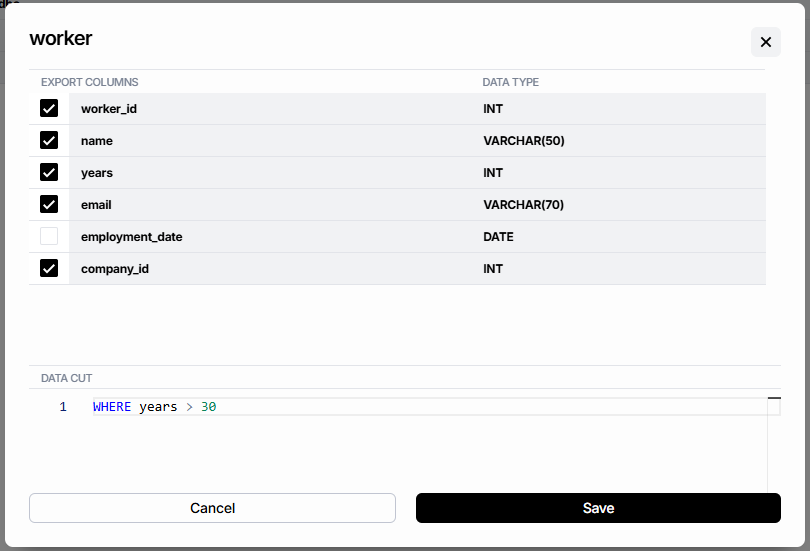
You don't need to enter the WHERE keyword. It will be added automatically.
«Data Cut» supports comparison operators (=, !=, >, <, >=, ⇐, <>), logical operators (AND, OR, NOT), parentheses, range and list operators (BETWEEN … AND …, IN(…), NOT IN(…)), pattern-matching operators (LIKE …), IS NULL and IS NOT NULL operators, mathematical and string functions (AVG, LOWER, YEAR, etc.), and subqueries.
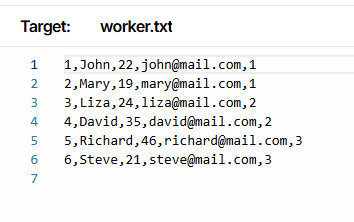
After specifying the «Export & Data Cut» settings, click «Save» and perform the table conversion. As a result, the text file containing the table data will include only the data that meets the specified conditions.
Data without filters:
Data with filters:
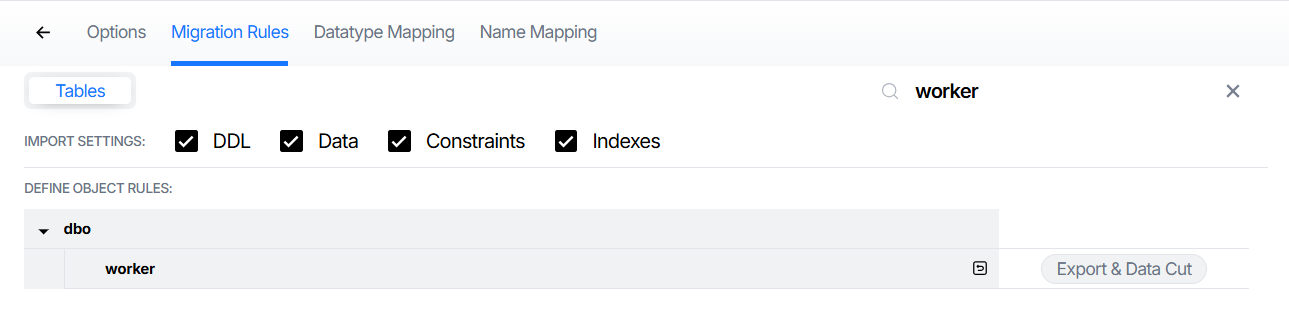
In the top right corner of the page, there is a search bar that will help you quickly find the object you need.
Order of Object Import
When migrating objects, it is important to consider the import order. An incorrect order can lead to errors:
- If you perform data migration before migrating constraints, you may encounter issues with unsuitable data (such as validation errors, should the raw data violate the new rules).
- If you migrate constraints first and then the data, it may lead to referential integrity errors (violations of foreign key constraints), should any such constraints exist.
- If you migration indexes before the migration of data, it may lead to a high system load and slow down the data insertion process.
- If you migration data before migration index, it may lead to errors when creating unique indexes (if the loaded data contains duplicates) and, in the case of large tables, may result in insufficient temporary disk space for sorting.
The import order depends entirely on the specific objects. You can find more details on how to change the import order in SQLWays at the Order of Object Import
Related Topics
If you have any questions or face any difficulties, please contact our support team at support@ispirer.com