Table of Contents
Using AI Features in SQLWays
SQLWays provides integrated AI tools that can assist with analyzing migration files, identifying potential conversion issues, and generating code improvement suggestions.
The following AI features are available:
- Project Prompt — defines project-specific instructions applied to AI requests.
- AI Chat — allows users to ask questions and analyze migration files.
- AI Suggestion — analyzes the currently opened file and proposes code changes.
AI-generated results should always be reviewed before they are applied to migration files.
Configuring AI Features
To configure AI functionality:
- Open Global Settings.
- Locate the AI Features section.
- Enable AI Features.
- Enable File Access if the AI model needs to analyze source or converted project files.
- Select an AI provider.
- Specify the provider URL.
- Click Connect.
- Select the Main model and Sub-agent model.
- Click Save AI Settings.
Supported providers may include:
- Ollama
- Ollama Cloud
- Gemini
- Vertex AI
- Other OpenAI-compatible providers
After a successful connection, SQLWays displays the number of available models.
The Main model generates the primary AI responses. The Sub-agent model is used for supporting file analysis and code-reading tasks.
An application restart is not required after saving the settings.

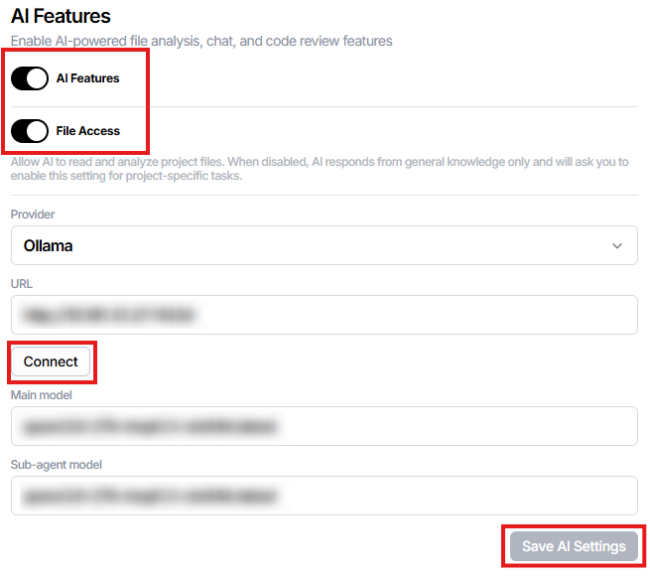
File Access
Enable File Access when AI tools need to read files from the migration project.
File Access is required for tasks such as:
- Analyzing the currently opened file
- Reviewing source or converted code
- Analyzing multiple project objects
- Generating changes with AI Suggestion
When File Access is disabled, AI Chat can answer general questions but cannot inspect project files.
Project Prompt
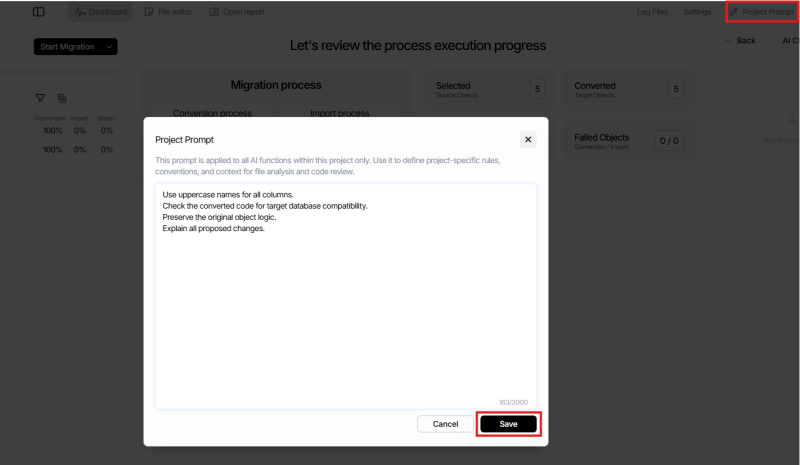
The Project Prompt defines common instructions for AI requests within the current project.
It can contain:
- Naming conventions
- Coding standards
- Target database requirements
- Project-specific migration rules
- Instructions for presenting recommendations
To configure it:
- Open the migration project.
- Click Project Prompt in the project toolbar.
- Enter the required instructions.
- Click Save.
For example:
Use uppercase names for all columns.
Check the converted code for target database compatibility.
Preserve the original object logic.
Explain all proposed changes.
The Project Prompt applies to both AI Chat and AI Suggestion within the current project.
AI Chat
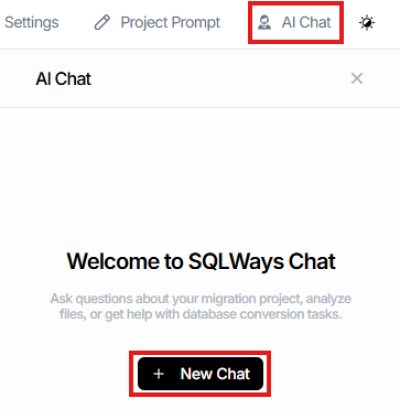
AI Chat provides an interactive interface for working with the configured AI model.
It can be used to:
- Analyze migration files
- Review converted SQL code
- Identify compatibility issues
- Investigate conversion results
- Request recommendations
- Ask general migration-related questions
To open AI Chat, click AI Chat in the project toolbar.
Click + New Chat, enter a request, and press Enter or use the send button.
Chat Mode
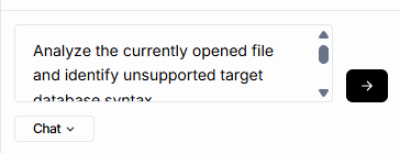
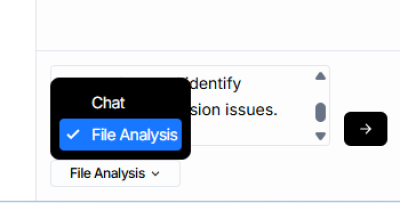
The Chat mode is intended for standard questions and focused analysis.
Example requests:
Analyze the currently opened file and identify unsupported target database syntax.
Review all converted views and list objects that may require manual correction.
Explain the purpose of this procedure and identify possible conversion issues.
The requested analysis scope should be specified in the message. AI Chat can analyze:
- The currently opened file
- Files of a specific object type
- The entire migration project
File Analysis Mode
The File Analysis mode performs a more detailed analysis using the configured Main model and Sub-agent model.
The generated report may include:
- Passing Items — successfully completed checks
- Critical Issues — problems that may prevent the code from working correctly
- Warnings — potential risks requiring review
- Recommendations — suggested corrections or next steps
Use File Analysis for complex objects, multi-file reviews, or project-wide compatibility checks.
Chat History
Chats are saved within the current project and displayed under Recent chats.
Users can reopen, continue, or delete previous chats. Chat renaming is currently not supported.
AI Suggestion
AI Suggestion analyzes the currently opened file and generates proposed code changes.
To use it:
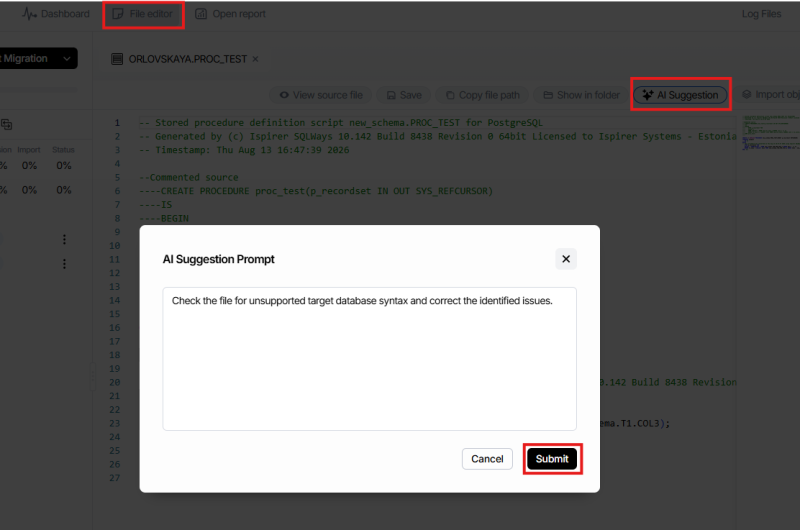
- Open a file in the File editor.
- Click AI Suggestion in the editor toolbar.
- Optionally, enter additional instructions.
- Click Submit.
For example:
Check the file for unsupported target database syntax and correct the identified issues.
The result is displayed as a diff containing:
- CURRENT — the existing file content
- AI SUGGESTION — the proposed changes
The following actions are available:
| Action | Description |
|---|
| Prev / Next | Navigate between proposed changes |
| Reject All | Reject all generated changes |
| Accept All | Apply all generated changes |
| Save | Save the accepted changes to the file |
Review the complete diff before selecting Accept All.
AI Suggestion currently does not support accepting individual changes separately. When only part of a suggestion is required, apply the necessary modifications manually in the File editor.
Recommendations
For more accurate and relevant AI results:
- Add clear project requirements to the Project Prompt.
- Specify the analysis scope in each request.
- Use File Analysis for complex or multi-file reviews.
- Review all generated changes before accepting them.
- Verify that the modified code preserves the original logic.
- Validate saved changes against the target database.
- Save AI settings after changing the provider or model.
AI functionality supplements the standard SQLWays conversion and validation process. It should not replace manual review and target environment testing.